Native app connection
Native app connection
Follow the steps below to install Slingshot and connect your Snowflake account.
Prerequisites for Snowflake Marketplace
In order to consume the Slingshot native app, you must become a consumer of listings and satisfy following requirements:
- Your organization must agree to the legal terms. See Accept the Snowflake Provider and Consumer Terms.
- Your account must be granted the relevant privileges for working with listings. See Set up required privileges.
Connect your first account
- Get the Slingshot native app from the Snowflake Marketplace using the
ACCOUNTADMINrole.a. Sign in to the Snowflake account.
b. In the navigation menu, select Data Products > Marketplace.
c. EnterSlingshotin the search box and select Slingshot.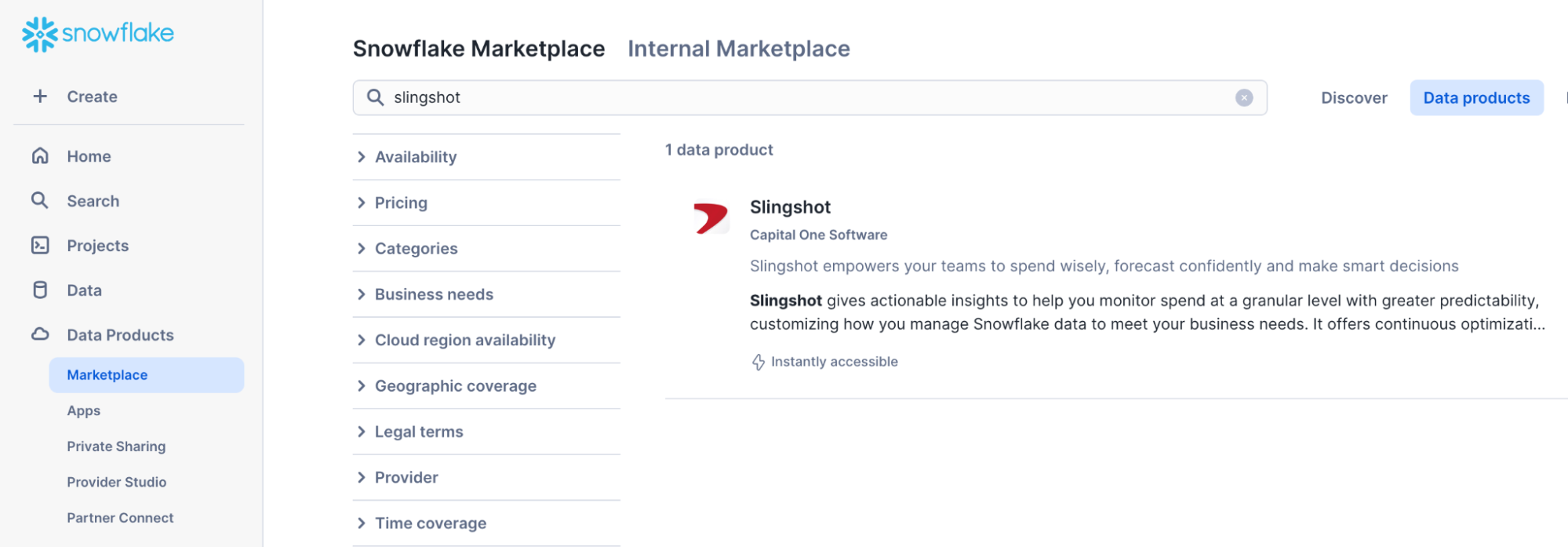 d. Select the Get button.e. In the Get modal, keep the application name Slingshot and select a warehouse for installation.
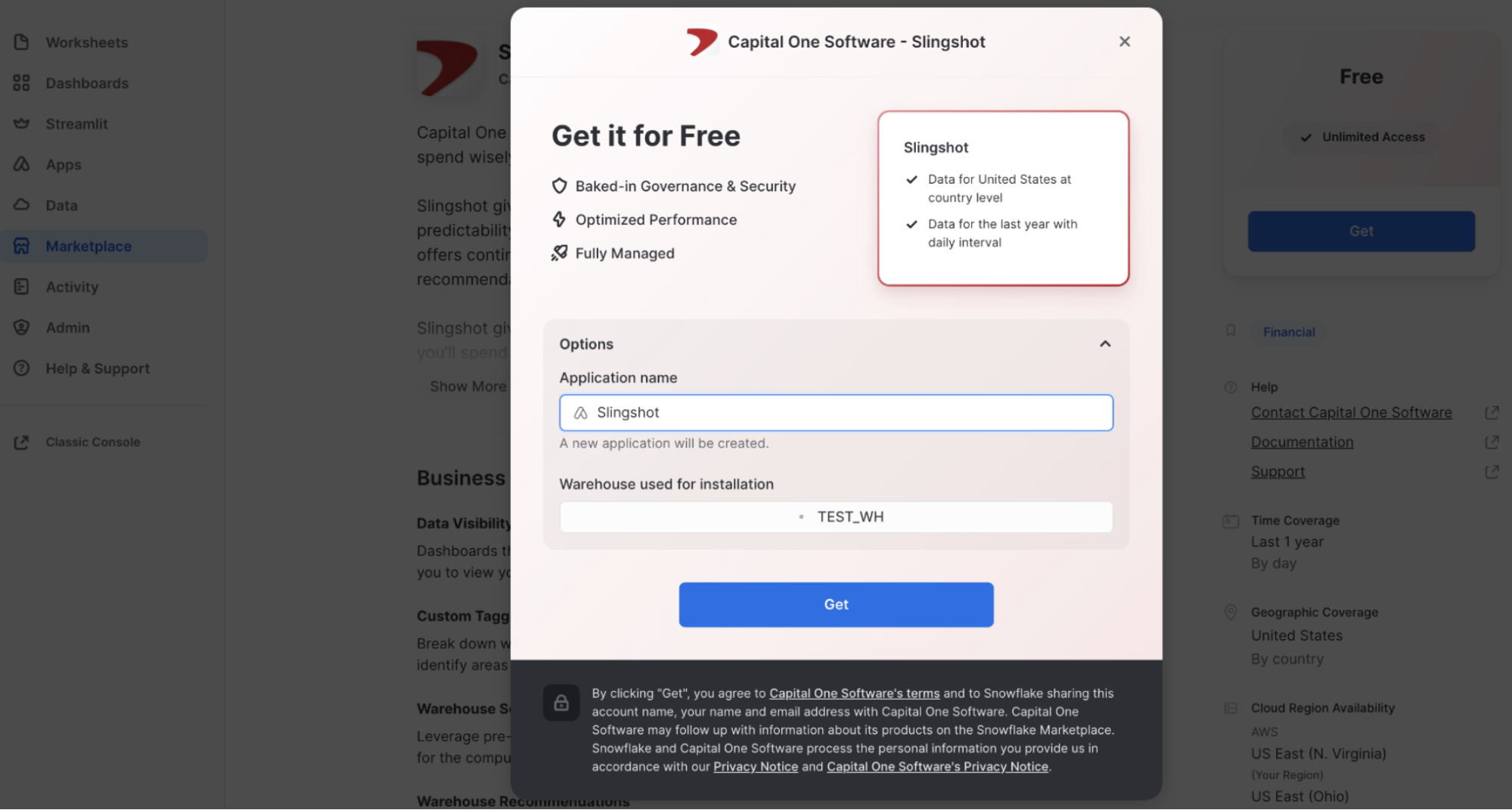 f. Select the Get button again to begin the installation.Access to the Slingshot trial is not unlimited. Please review the Terms of Service to understand the “Trial Term”.
 - Once the app is installed, find it in Data Products > Apps.
- Open Slingshot.
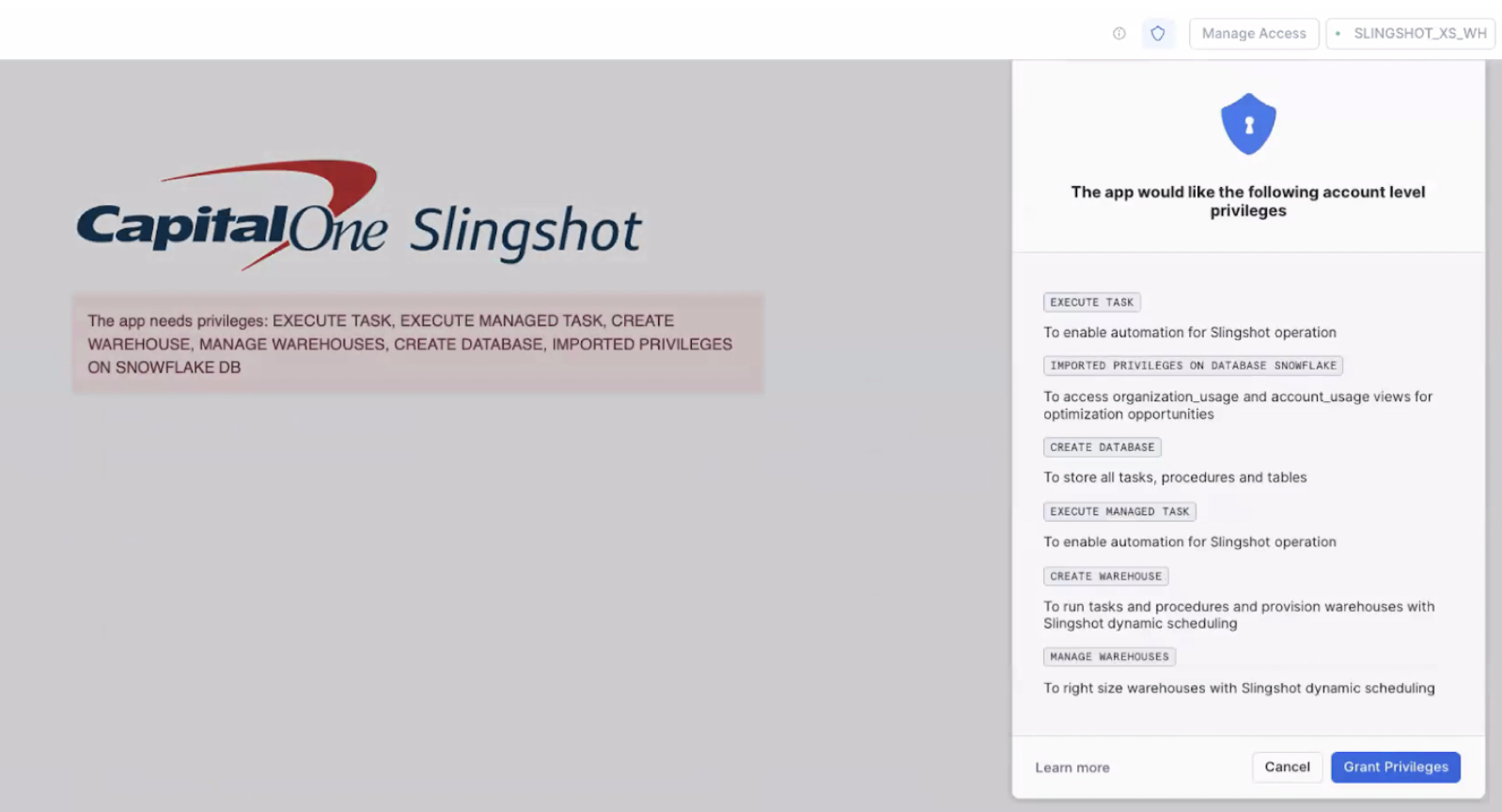
- Review the account level privileges for the app and select the Grant Privileges button.
- From the First things first! page:a. Ensure
ORGADMINis enabled on this regional primary account.b. Copy the provided script code.c. Create a new worksheet and paste the script code.d. SelectACCOUNTADMINfor the user role and Run All from the drop down menu at the top right of the worksheet.e. Press the Yes, I’ve run the script button to continue.
Connect subsequent accounts
Now that you have connected the first account to Slingshot, you will see other accounts across regions in the following places:
- Snowflake accounts page in Slingshot under Configuration
- Snowflake accounts page in the Slingshot app of a connected account
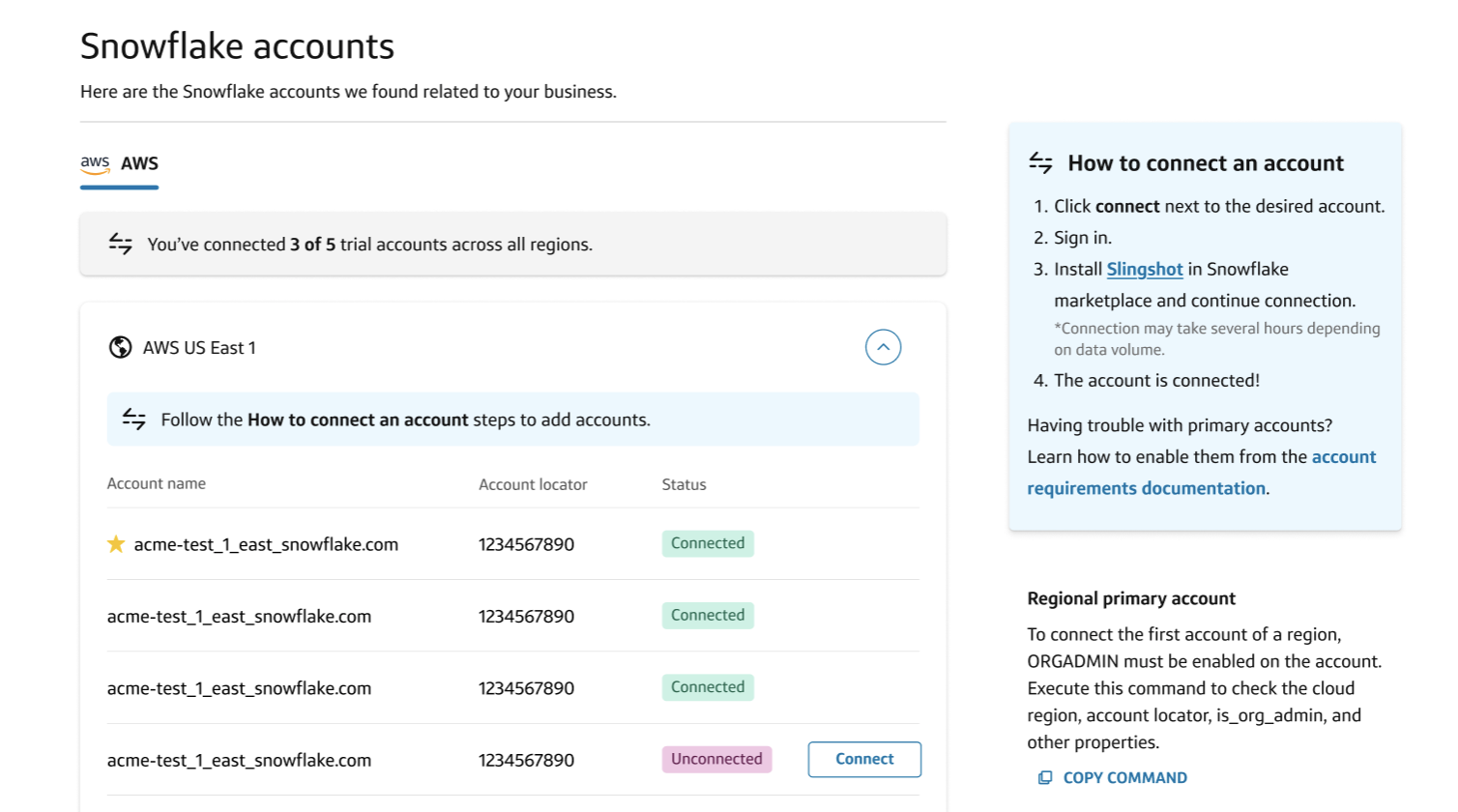
To connect another account:
- Click Connect next to the desired account.
- The account link will open for you to sign in to the desired account.
- Repeat the connection steps above.Note: Only regional primary accounts require
ORGADMINto be enabled. - When prompted to run the query, click Copy open worksheet and run query.
- After the query is run, return to the native app and reopen/refresh the browser to reload it.
- Click Yes, I’ve run the script to continue.
- You will get an email in a few hours when the account connection is complete.